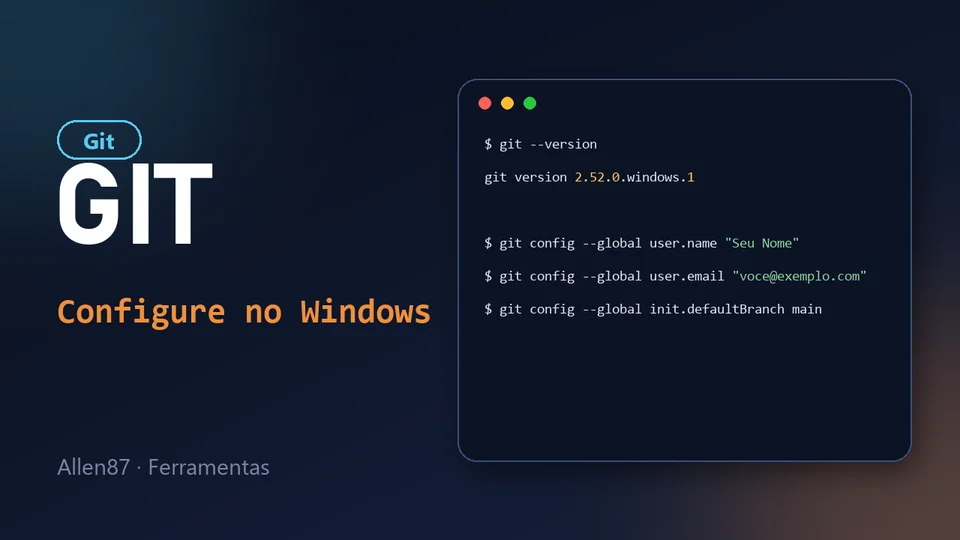
Git and GitHub often show up together, but they are different things: Git is the program that runs on your machine and tracks the versions of your code, and GitHub is the website where you store and share repositories. In this guide, you install and set up Git on Windows from scratch, so you can start versioning your projects. In the next article, we connect Git to GitHub using SSH.
1. Install Git
Download the installer from git-scm.com/download/win and run it. On most screens you can keep the default options. The installer already includes Git Bash, a terminal we will use in the next steps.
To check the installation, open Git Bash and type:
git --versionIf you see something like git version 2.52.0.windows.1, you are good to go.
2. Create a folder for your repositories
Choose where your projects will live on your computer. As an example, I created a folder called Repos_Git inside Documents.
Right-click inside the folder and choose Open Git Bash here. On Windows 11, this option appears after you click Show more options. If you prefer, use Open in Terminal: the commands below also work in PowerShell.
3. Tell Git who you are
Every commit stores the name and email of whoever made it. Set both once:
git config --global user.name "Your Name"
git config --global user.email "youremail@example.com"
Two details that often cause confusion:
- The name does not have to be your GitHub username. It only identifies the author in commits. Use the name you want to be recognized by.
- What links a commit to your GitHub profile is the email. Use the same email registered on your account, or the private email GitHub offers under Settings → Emails (something like
12345678+yourusername@users.noreply.github.com), which avoids exposing your personal email in public commits.
4. Recommended settings
These settings save you from everyday surprises:
git config --global init.defaultBranch main
git config --global core.autocrlf true
git config --global core.editor "code --wait"
init.defaultBranch main: new repositories start with themainbranch, the same default as GitHub.core.autocrlf true: Git converts line endings between Windows and the repository, which prevents files from showing up as modified when they were not. It is the installer's default, but it is worth confirming.core.editor "code --wait": uses VS Code to write commit messages. Skip this line if you do not use VS Code.
5. Check your configuration
git config --global --listYou will see your user.name, your user.email and the settings above. To see which file each value comes from, use git config --list --show-origin.
Next steps
With Git configured, you can already create a local repository with git init. To download and push projects from GitHub without typing a password, the two ends still need to be connected: that is the topic of the article on how to set up SSH on Windows.