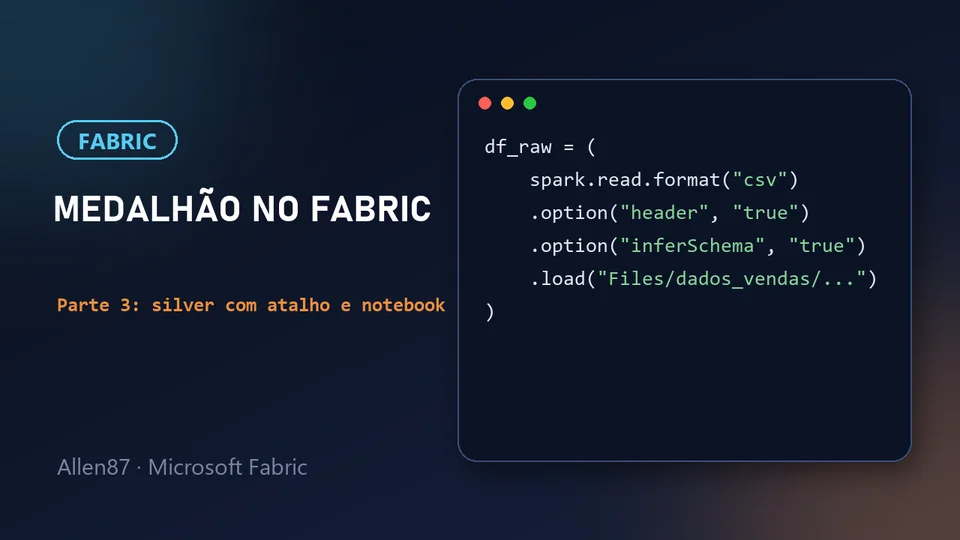
This is part 3 of the series on medallion architecture in Microsoft Fabric. In part 2 we loaded the CSV into bronze. Now we'll create the silver layer, connect it to bronze with a shortcut and read the file in a notebook.
In one sentence: silver sees the bronze data through a shortcut, without copying it, and a notebook reads that file.

The silver layer
In silver, raw data becomes reliable data: no duplicates, correct types and nulls handled. Before cleaning, though, we need access to the bronze data.
Create a second lakehouse in the workspace, as we did in part 2: New item, Lakehouse, named lh_silver. It will have the same structure as lh_bronze: Files and Tables.
Shortcut: reference without copying
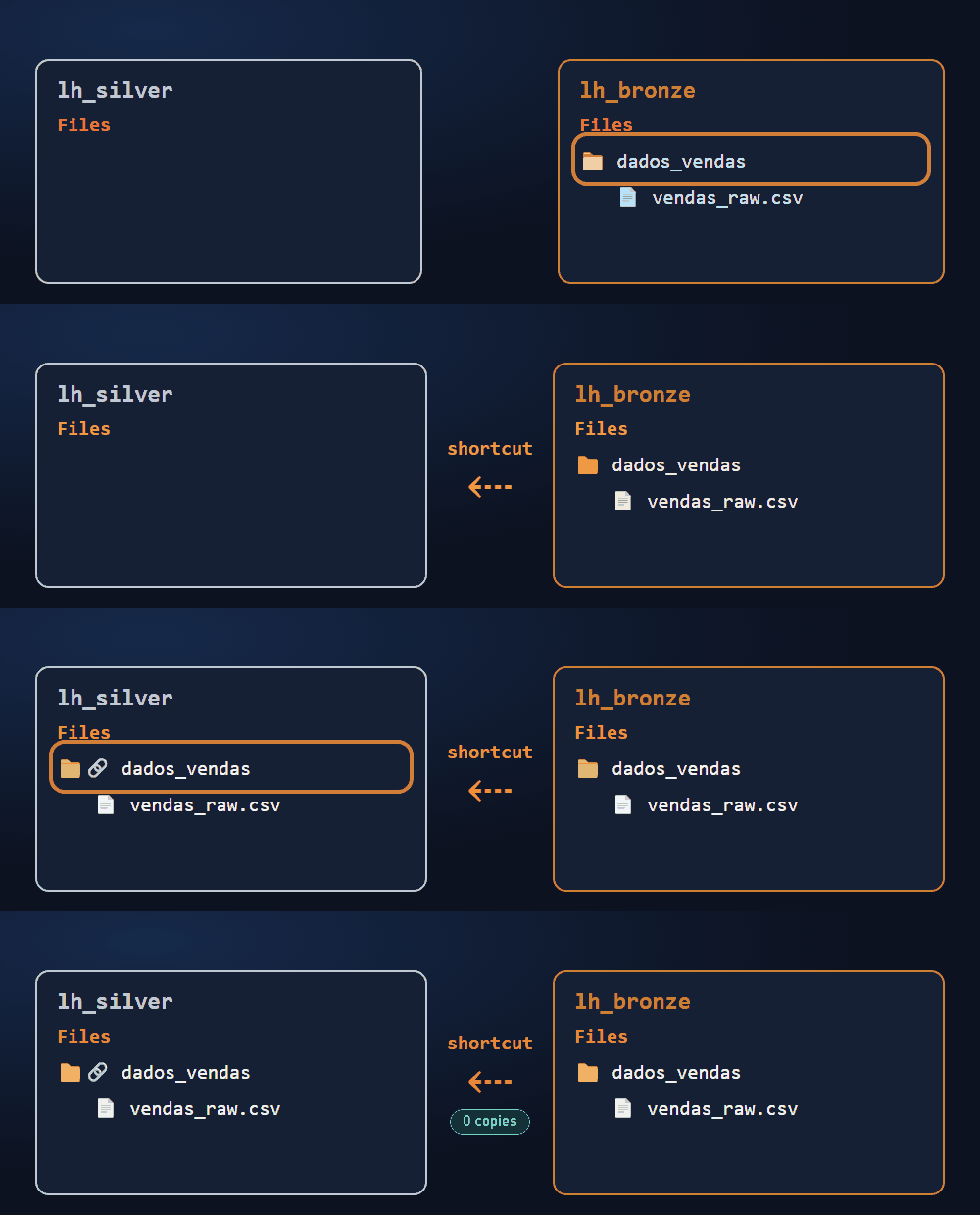
Instead of copying the file from bronze to silver, we'll use a shortcut. A shortcut is a reference to data that lives somewhere else. It copies nothing.
That brings advantages:
- Less storage: the data exists only once.
- No data movement: no copy process to maintain or wait for.
- Always up to date: whatever changes in bronze shows up in silver.
Creating the shortcut
See the animated step-by-step:
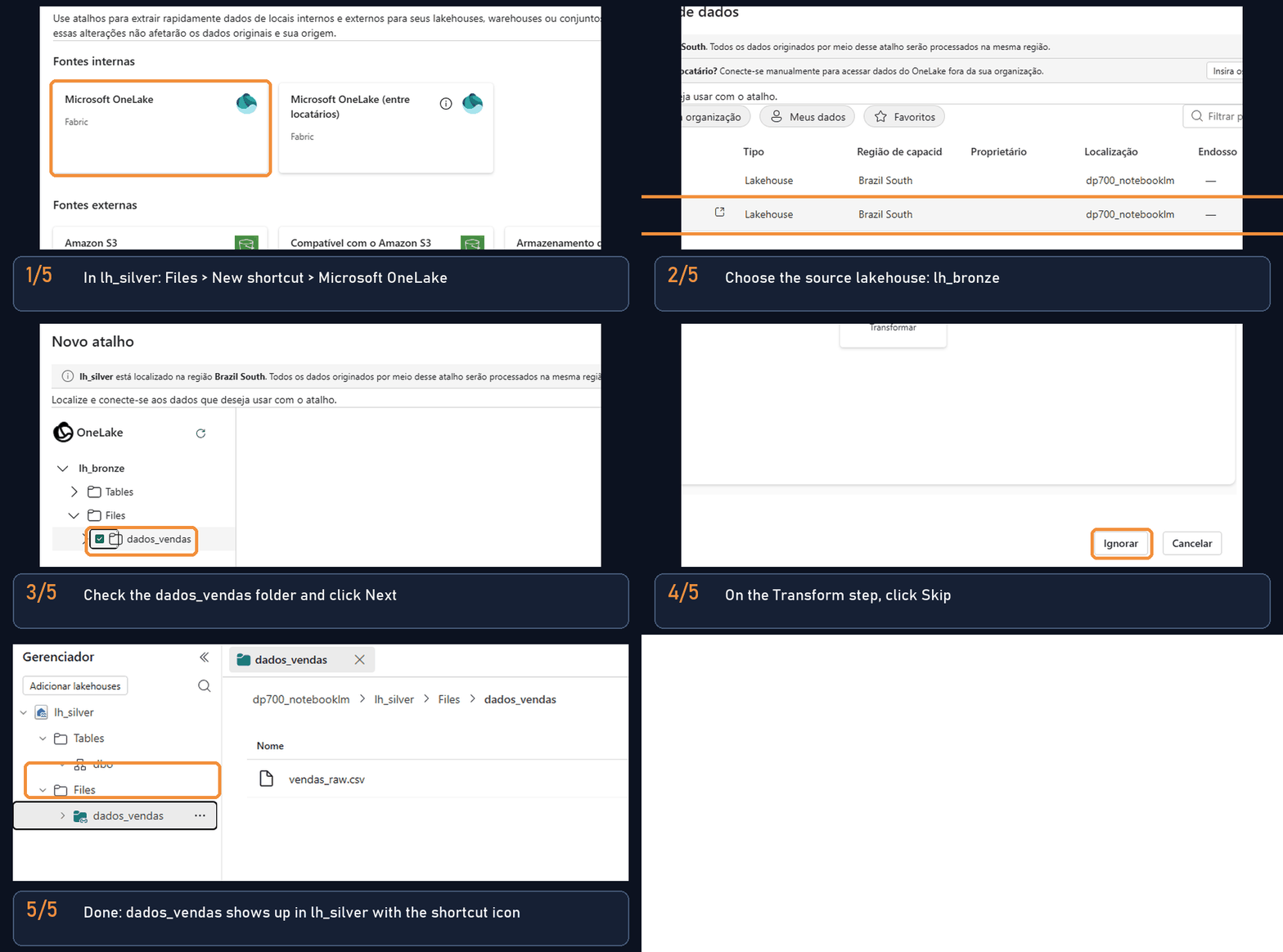
The steps below follow Fabric's screens, in order. The screenshots are from the Portuguese interface.
1. Open the menu and choose the source. In lh_silver, click the three dots next to Files and choose New shortcut. Under internal sources, choose Microsoft OneLake.

2. Choose the source lakehouse. Select lh_bronze.

3. Check the folder. Under Files, check the dados_vendas folder and click Next.

4. Skip the transformation. On the Transform step, click Skip. Fabric offers to convert the data to Delta, but I'll keep the original CSV and do that conversion later, in silver itself. Then finish creating the shortcut.

Result
In lh_silver, under Files, the dados_vendas folder appears, identical to the one in bronze but with a link icon. That's the sign it's a shortcut: when you open it, you see vendas_raw.csv, which physically lives in bronze.

Notebook: reading the CSV in silver
With the shortcut ready, the next step is reading the file. For that I use a notebook, where I write PySpark code.
Creating and attaching the notebook
See the animated step-by-step:
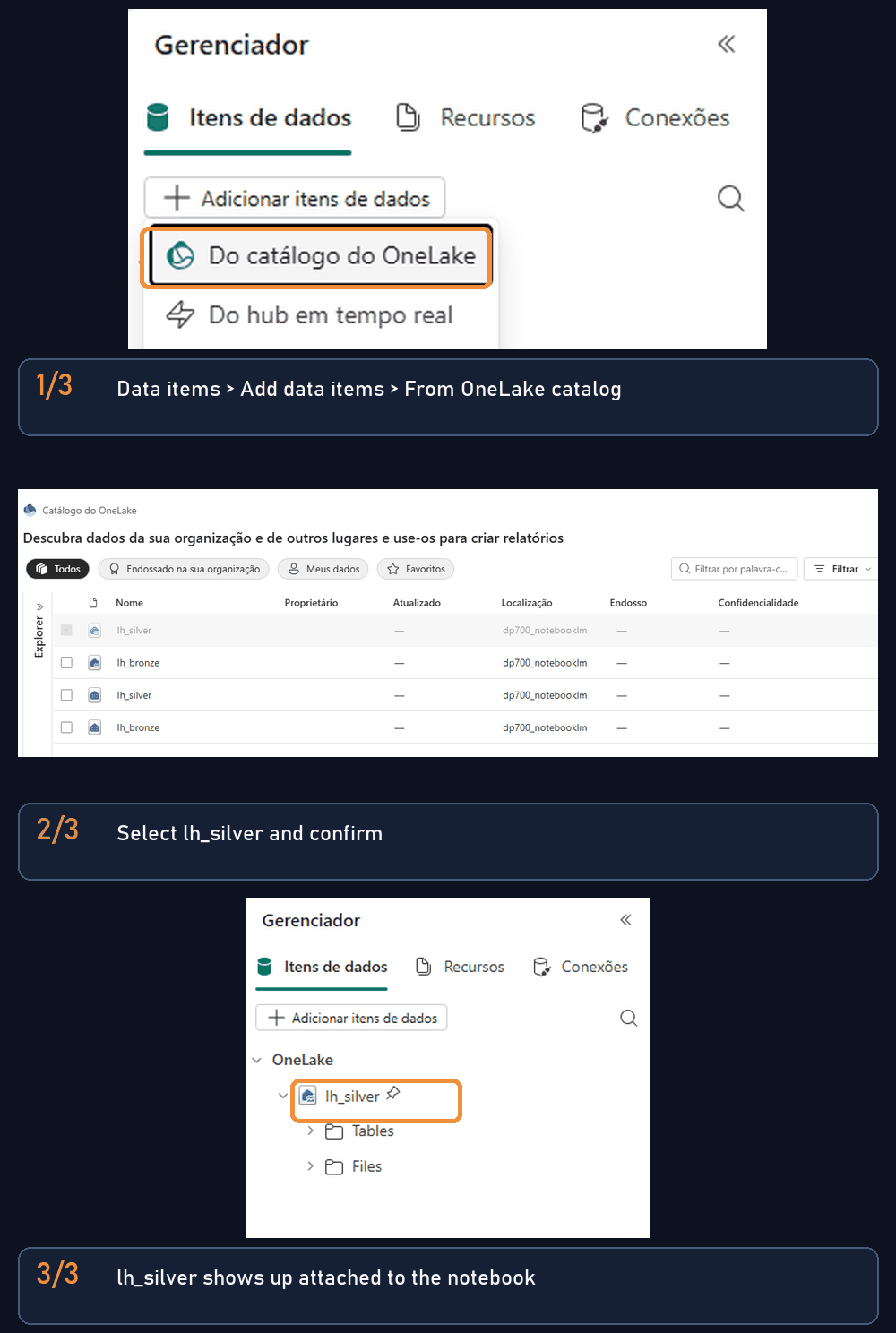
1. Create the notebook. In the workspace, click New item and choose Notebook. Give it a name that says what it does. Mine is nb_transformacao_silver.
2. Add the lakehouse. In the Data items pane, click Add data items and choose From OneLake catalog.

3. Select lh_silver. Check lh_silver and confirm.

4. Check the attachment. lh_silver shows up in the notebook pane, with Tables and Files.

This attachment matters: the attached lakehouse becomes the notebook's default, and that's what allows relative paths like Files/dados_vendas/... in the code.
Reading the file
In the notebook's first cell, run:
# Cell 1: Read the data through the OneLake shortcut
caminho_shortcut = "Files/dados_vendas/vendas_raw.csv"

df_raw = (
    spark.read.format("csv")
    .option("header", "true")
    # inferSchema is handy for studying, but it makes Spark scan the data to
    # figure out the types. With lots of data, define the schema manually instead.
    .option("inferSchema", "true")
    .load(caminho_shortcut)
)

print("Schema detected automatically:")
df_raw.printSchema()

print("Raw data loaded:")
display(df_raw)
What the code does:
caminho_shortcut: the file path, going through the shortcut. The notebook reads the CSV from silver, but the file still physically lives in bronze.format("csv"): tells Spark the file format.header = true: the first line is the header, not a record.inferSchema = true: Spark examines the data and works out each column's type (integer, decimal, date, text).printSchema(): shows the inferred structure.display(df_raw): shows the loaded records.
Notice the comment about inferSchema: here it's for learning purposes. In a real project, defining the schema manually is more performant.
Run the code in your notebook and check the result: first the schema Spark inferred (name and type of each column), then the table with the records. Compare the types against the CSV content and see if Spark got them right. The file's problems (null value and duplicate transaction) are still there.
Frequently asked questions
What happens if I delete the shortcut?
Nothing happens to the data. A shortcut is an independent object from its target: when you delete it, the files stay in bronze. Moving or renaming the target folder, however, can break the shortcut.
Does the shortcut copy the data from bronze to silver?
No. A shortcut is just a reference. The data exists only once, in bronze, and any change made there already shows up in silver.
Why does the shortcut have to point to a folder?
Because a shortcut is created on folders, not on single files. That's why the CSV sits inside the dados_vendas subfolder in bronze.
Why doesn't the CSV in silver show up as a table?
Because the shortcut lives in the Files area, and in that area data stays as files: Fabric only discovers tables automatically under Tables. To get a table, we'll convert the CSV to Delta in part 4.
Why does the notebook have to be attached to lh_silver?
The attached lakehouse becomes the notebook's default, and that's what allows relative paths like Files/dados_vendas/... without giving the full address.
Going further (Microsoft documentation)
Summary
- We created lh_silver, with the same structure as lh_bronze.
- A shortcut in silver's
Filespoints todados_vendasin bronze, with no data copied. - We created the
nb_transformacao_silvernotebook and attached it to lh_silver, which becomes the default lakehouse. - We read the CSV with PySpark, going through the shortcut.
In part 4, we'll clean the data and write it as a Delta table.