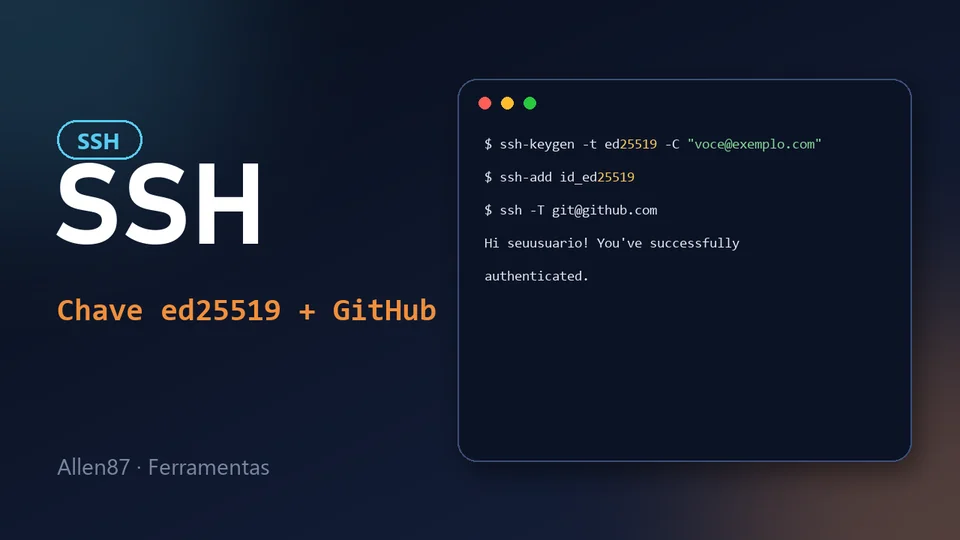
SSH (Secure Shell) lets you access servers and talk to GitHub over an encrypted connection, without typing a username and password on every git push. In this guide, you create an SSH key on Windows, add it to GitHub and test the connection. If you have not installed and configured Git yet, start with the previous article.
How it works, in one sentence
You generate a key pair: the private key, which stays only on your computer, and the public key, which you hand to GitHub. Whoever holds the public key can verify that you hold the private one, without it ever leaving your machine.
Warning: the key that goes to GitHub is always the one with the
.pubextension. The file with no extension is the private key: never copy, send or publish its contents.
1. Generate the key
Open Git Bash (or PowerShell) and type:
ssh-keygen -t ed25519 -C "youremail@example.com"-t ed25519picks the currently recommended algorithm: the keys are smaller and faster than RSA, which was the default in older guides.-Cis just a comment so you can recognize the key later. Your email is a good choice.
The command asks two questions:
- Where to save it: press Enter to accept the default (
C:\Users\YourUser\.ssh\id_ed25519). - Passphrase: a password that protects the key. I recommend setting one: if someone copies the file, it is useless without the password. To avoid typing it all the time, use the next step.
At the end, the .ssh folder will have two files: id_ed25519 (private) and id_ed25519.pub (public).
If your guide or system still requires RSA, use
ssh-keygen -t rsa -b 4096 -C "youremail@example.com". The files will be namedid_rsaandid_rsa.pub.
2. Load the key into ssh-agent
ssh-agent keeps the unlocked key in memory, so you type the passphrase only once per session. On Windows, it comes disabled. Open PowerShell as administrator and run:
Get-Service ssh-agent | Set-Service -StartupType Automatic
Start-Service ssh-agent
Then, in a regular terminal, add the key:
ssh-add $env:USERPROFILE\.ssh\id_ed255193. Copy the public key
Display the contents of the .pub file and copy everything, from the first to the last character:
cat ~/.ssh/id_ed25519.pubIn PowerShell, the equivalent command is Get-Content $env:USERPROFILE\.ssh\id_ed25519.pub. It starts with ssh-ed25519 and ends with your comment.
4. Add the key to GitHub
- On GitHub, click your photo in the top right corner and choose Settings.
- In the side menu, open SSH and GPG keys.
- Click New SSH key.
- In Title, enter a name that identifies the computer (for example, "Personal laptop").
- In Key type, keep Authentication Key, and paste the public key into Key.
- Click Add SSH key. GitHub may ask for your password to confirm.
5. Test the connection
ssh -T git@github.comThe first time, SSH asks whether you trust the server and shows a fingerprint. Check that it matches the official GitHub list and answer yes.
If everything is right, you will see something like:
Hi yourusername! You've successfully authenticated, but GitHub does not provide shell access.That message is the expected success: GitHub recognized your key, it just does not offer a terminal.
6. Clone a repository
On GitHub, open one of your repositories, click Code, choose the SSH tab and copy the address, which looks like this:
git@github.com:yourusername/repository-name.gitIn the folder where you keep your projects, open Git Bash and run:
git clone git@github.com:yourusername/repository-name.gitIf the repository downloads without asking for an account password, the setup is working.
If something goes wrong
Permission denied (publickey): GitHub did not recognize the key. Check that you pasted the contents of the.pubfile (not the private one), thatssh-agentis running and that the key was added, usingssh-add -l.ssh-addsays the agent is not running: repeat step 2 in a PowerShell opened as administrator.- More than one key: if you have keys for other services, use a
~/.ssh/configfile to say which one to use for each host.
Best practices
- Use one key per computer, so you can revoke just the key of a lost device.
- Set a passphrase and keep ssh-agent running.
- Never commit, send or paste the private key anywhere.
- Review the keys under Settings → SSH and GPG keys from time to time and remove the ones you no longer use.